How to Turn AI Art Prompt Examples Into a Repeatable Text-to-Image Workflow
A practical workflow for turning AI art prompt examples into a repeatable text-to-image process: set the destination, decompose the prompt into five slots, freeze what you are not testing, change one slot per pass, and export at final size.
Most people meet text-to-image through a list of examples: one sentence copied from a blog, pasted into a generator, and turned into a surprisingly good picture. Then they write a sentence of their own, get something muddled, and conclude that the examples were magic rather than method.
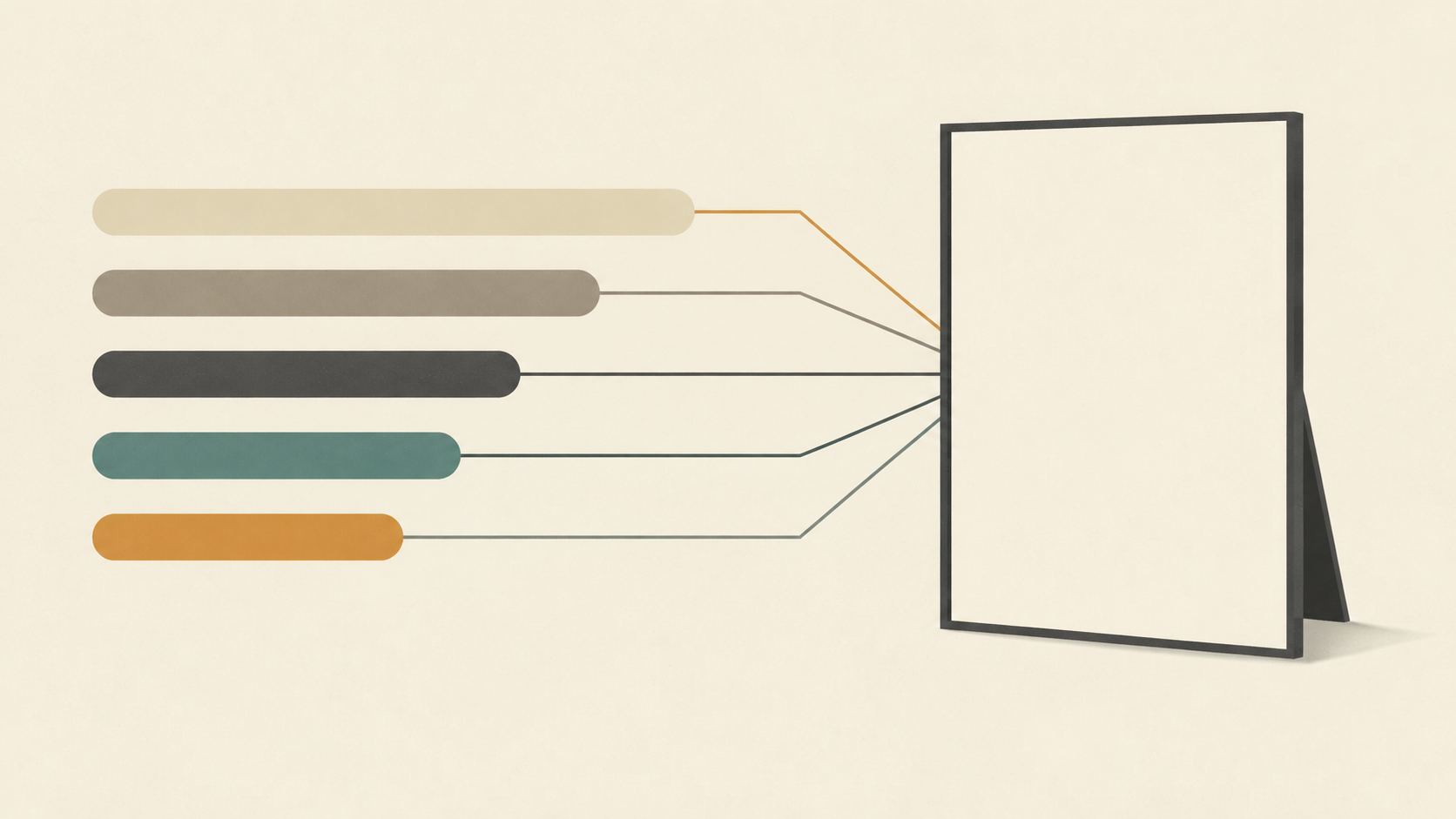
The examples are not magic. They work because each one quietly answers the same handful of questions: what kind of image is this, what is the subject doing, where is it, what is the light doing, and what medium does it look like. If you can pull those answers out of an example and put them back in for a different subject, you can write your own. The workflow below does exactly that in a fixed order: decide the destination, decompose an example, fill the slots, freeze what you are not testing, change one thing per pass, diagnose the miss, then export and record the recipe.
Decide the destination before you write a word
A prompt is a set of instructions for one specific file, so start with the file. Four decisions up front save most of the later passes. First, the aspect ratio: a wide banner, a square post and a portrait poster are different compositions, not different crops of the same picture. Second, the subject, singular: a prompt that asks for two or three competing focal points usually produces a scene where none of them is resolved. Third, the reading distance: what has to survive at thumbnail size, because detail that only appears at full zoom is wasted space in the composition. Fourth, the exclusion list, meaning the things that would ruin the image if they appeared.
Keep the ratio in the app's own control instead of the sentence. Ideogram's prompt documentation draws that line explicitly: pick the aspect ratio and quality in the settings, because prompt wording describes the composition and does not change those app controls. The same split holds in most generators, KOOX AI included, where the model and the output size sit next to the prompt box rather than inside it.
Decompose each example into five slots
The most reusable shape for AI art prompt examples is a short ordered template: image type, main subject, action or placement, setting, then lighting and style. Read as one line it looks like this: a product photo of a green glass bottle, centred on a cream pedestal, soft window light, in a minimal studio setting.
Each slot has a job, and knowing the job is what makes an example portable.
- Image type sets the grammar of the picture: photograph, oil painting, pencil sketch, three-dimensional render, flat vector illustration. It is the most consequential phrase in the prompt, because it decides what the other words are allowed to look like.
- Main subject carries the visual facts: colour, shape, material, texture, state. Vague nouns here are the usual reason a result is technically on topic and visually empty.
- Action or placement says how the subject sits in the frame. Even a still object has a pose: standing upright, lying on its side, filling the left third.
- Setting answers where and when, including what is behind the subject and how far away it is.
- Light and style decide mood: direction, hardness, colour temperature, then medium and finish.
What the template leaves out matters just as much. The ratio, the model and any negative prompt are separate controls in the interface, not sentences. An example that reads well but was generated at a different ratio will not reproduce on your canvas, and no amount of rewriting will fix that.
Fill the slots, then compress
Write a first draft that fills all five slots in plain language, then cut it. A useful target is one sentence for the subject and light slots and a phrase for the rest.
Take a weak request, a beautiful artwork of a fox in a forest, and fill the slots: a watercolour painting of a red fox standing still on a fallen mossy log, low ferns in the foreground, cold blue evening light from the left, loose visible brushstrokes. Every added clause now points at something you can check in the result: the fox's pose, the log, the ferns, the direction of the light, the brushwork. If the picture comes back wrong, you can name the clause that failed instead of guessing at the whole sentence.
Compression matters as much as detail. Two adjectives that pull in different directions, such as soft and crisp, or vintage and minimalist, tend to cancel out or produce a muddled surface. Keep the adjectives that describe something visible and delete the ones that only describe your opinion of what you asked for.
Freeze everything you are not testing
Diffusion is a random process: the same prompt produces different pixels on different runs. Hugging Face's diffusers documentation says it without hedging, noting that diffusion is a random process that generates a different output every time, which is why reproducibility depends on controlling the seed as well as the wording.
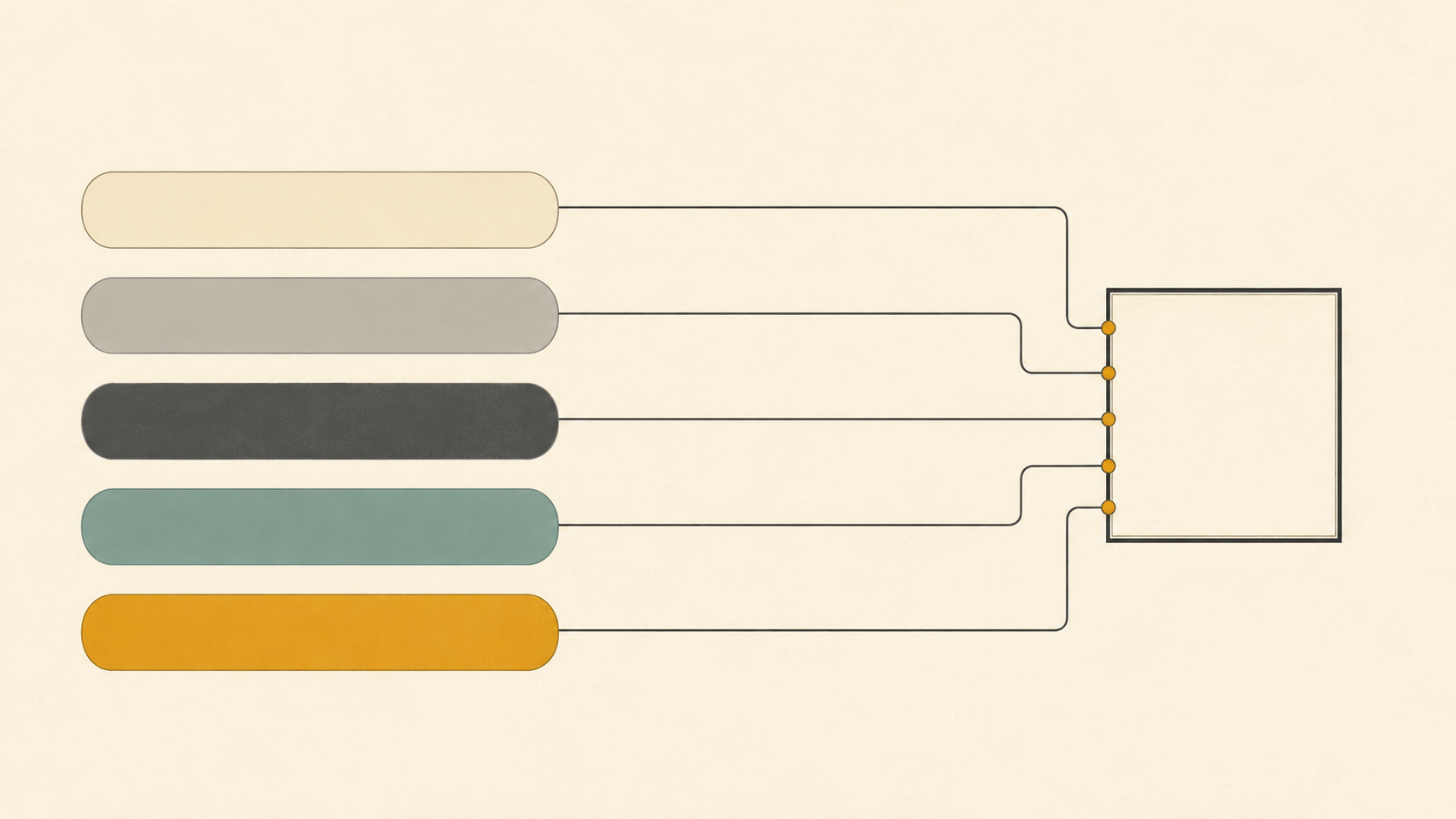
That has a direct consequence for iteration. If you change the prompt and the seed at the same time, you cannot tell which one caused the improvement, and you will keep a change that had nothing to do with it. Freeze what you are not testing: same model, same aspect ratio, same quality setting, and the same seed wherever the tool exposes one. Then change a single slot, regenerate, and compare.
When there is no seed control, run two identical generations before you start and look at how much they differ. That is the noise floor of the tool, and any change smaller than the noise floor is not evidence of anything.
Change one slot per pass
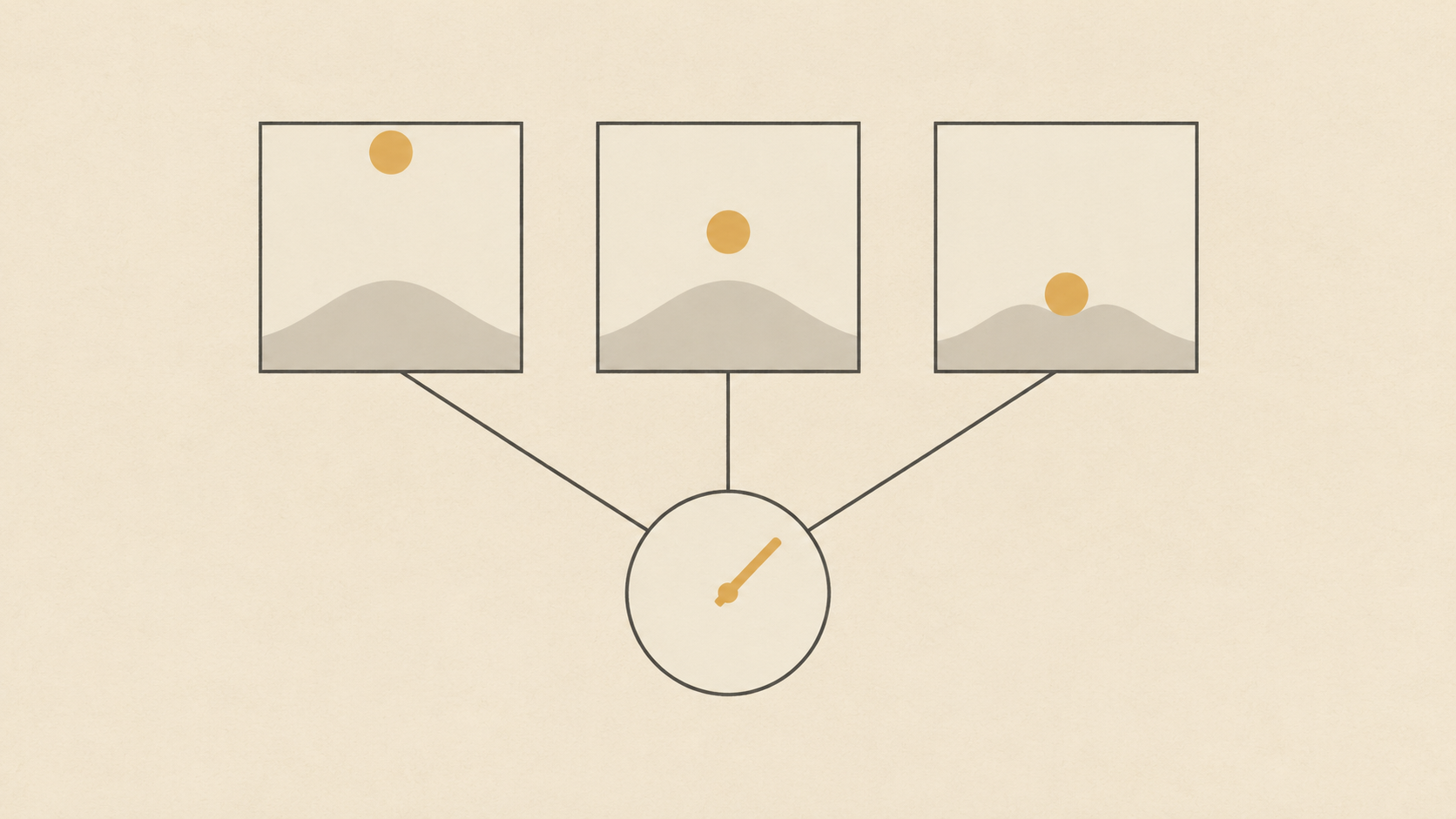
The loop is deliberately boring. Pick the slot you judge weakest in the current image, rewrite only that slot, regenerate, and put both results side by side at the same size. Keep the better one and write down what you changed.
Two or three passes on the same slot is a reasonable ceiling. Past that, the slot is usually not the problem, and the honest next move is a different model or a different composition rather than a longer sentence.
Order the passes by cost. Composition and subject come first, because lighting and style decisions are wasted on an image whose subject is wrong. Style comes last and is usually the cheapest to settle, since one strong medium word often resolves a mood problem that three adjectives could not.
This is also how a personal prompt library gets built. After a few sessions you stop writing sentences from scratch and start assembling them from slots that already worked: a light you know produces clean shadows, a medium that renders foliage the way you want, a placement that leaves room for a headline.
Diagnose the miss before you rewrite
Rewriting an entire prompt because one thing is wrong is how prompts become long and unstable. Classify the miss first, because each class points at a different slot.
- The subject is right but the frame is wrong: that is composition, so fix placement and setting.
- The frame is right but the mood is flat: fix the light before the style words, and give that light a direction.
- The subject is unrecognisable, or merged into the background: the subject slot is too abstract, or two subjects are competing. Cut to one and describe its edges.
- The image is busy: drop secondary elements from the prompt, then decide whether the setting itself needs to be simpler.
- Lettering comes back garbled: put the exact words in quotation marks and keep them short, because long strings and unusual spellings break first.
- The crop is wrong: that is a control, not a prompt. Change the ratio and rewrite the composition sentence to match the new frame.
Two or three of these cover almost every disappointing result, and each one costs a sentence of editing instead of a full rebuild.
Test the same example on a second model
Before a prompt goes into your library, run it once on another model. Most platforms offer several, and KOOX AI's text to image tool lists multiple models next to separate aspect ratio and resolution controls. Models differ in how they render skin, lettering, foliage and fine pattern, and a prompt tuned to one does not automatically reproduce on another.
Hold the prompt constant and change only the model. Whichever result you prefer, you have learned something durable: either the prompt is model-specific and deserves a note, or it is robust enough to reuse anywhere.
Export at final size and record the recipe
Generation settings decide what you can do with the file afterwards. Choose the final dimensions before generating, and generate at the largest size the tool allows for that ratio, because a small square cannot become a wide hero image without either cropping away the composition or stretching it into something soft. If the layout needs a different ratio, regenerate at that ratio instead of resizing.
Then record the recipe in whatever form you will actually consult: the prompt text, the model, the ratio, the seed if there was one, and one line about what the image was for. A folder of unnamed files is not a library, and a one-line note per image is.
A workflow you can run in twenty minutes
The whole sequence fits into a short session. Decide the file and the exclusions. Decompose one example into five slots and fill them for your subject. Freeze the settings, change one slot per pass, and diagnose each miss by class instead of rewriting everything. Run the winning prompt on a second model, export at final size, and write the note.
The visible payoff is speed. The invisible one is that every image leaves behind a prompt you understand, which is the difference between collecting lucky examples and building a method.