How to Change an Image Aspect Ratio With AI: A Five-Step Expansion Workflow
A five-step workflow for changing an image aspect ratio with AI: pick the ratio from the destination spec, place the original, prompt the new space, check the seam, then export.
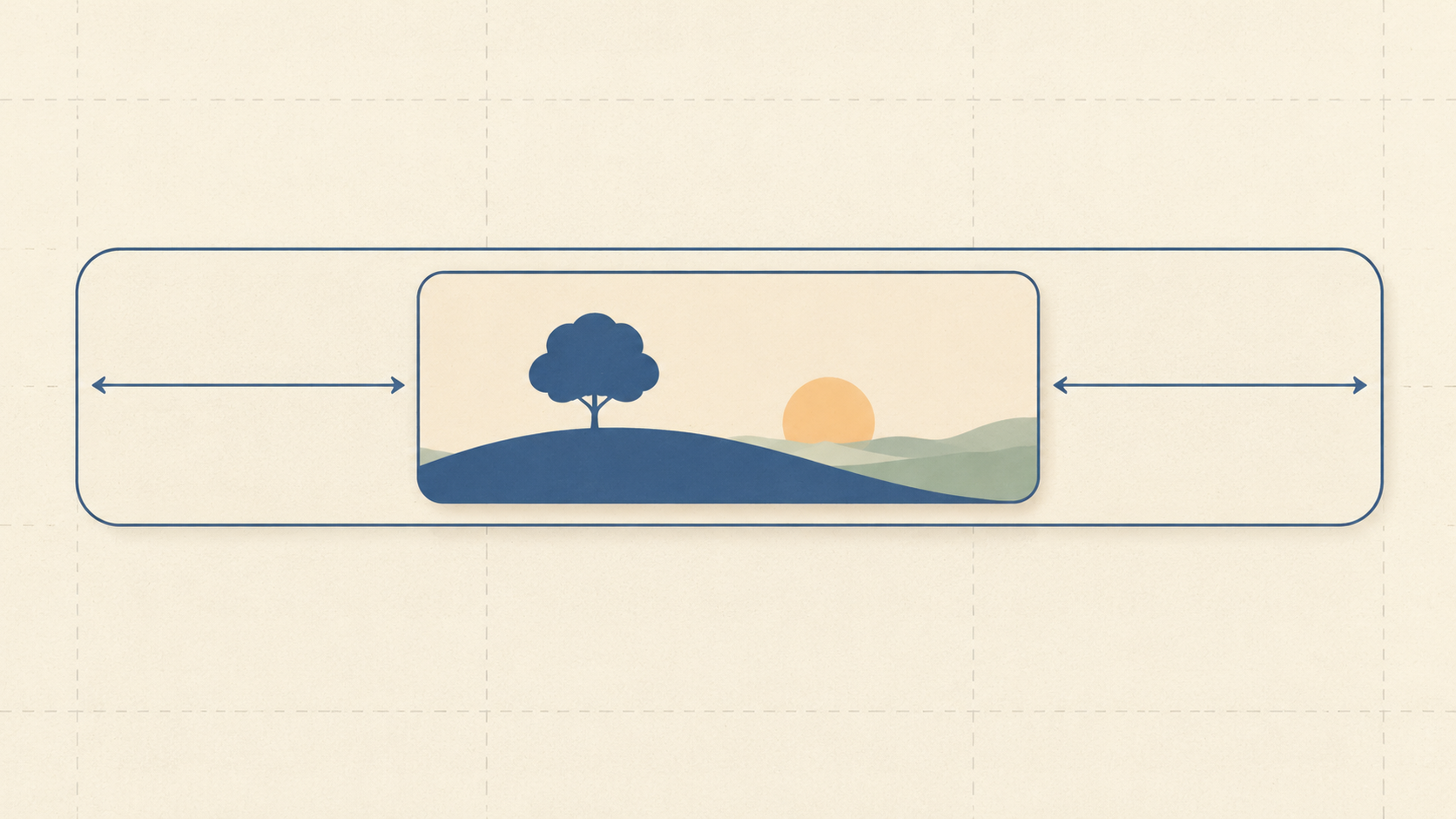
Aspect ratio requests rarely arrive as a design brief. They arrive as a layout constraint: the banner slot is wide, the Reel is vertical, the product grid wants something taller than the file you have. The photograph was composed for a different frame, and now something has to give.
The three classic answers all cost something. Cropping throws away composition you deliberately built. Stretching distorts faces and products. Padding with a flat colour announces that the file was the wrong shape. AI expansion adds a fourth option: keep every original pixel, enlarge the canvas, and generate plausible scene content in the new space so the frame looks as though it was composed that way.
This is a working guide to changing an image aspect ratio with AI, written as five steps. Each step ends in something you can inspect rather than a feeling that it looks fine, which is the difference between an expansion you can publish and one that reads as a patch. The tool used throughout is the KOOX AI Image Expander, which takes a source photo, a target ratio, an optional description of what belongs in the new space, and returns a 4K result by default. The same decisions apply to any outpainting tool.
Decide the target ratio before you open the tool
Every destination publishes its own limits, and they are not the same shape. Instagram Reels accept anything between 1.91:1 and 9:16, with a minimum resolution of 720 pixels and a minimum frame rate of 30 FPS. Instagram feed photos hold their original resolution only while the ratio stays between 1.91:1 and 3:4; outside that range the platform crops the file to fit.
That last detail matters more than it looks. Expand a square product photo to 16:9 for a website hero, reuse the same file in a feed post, and the platform may crop it back and undo the work. Expansion is fast, which is why deciding the destination first is worth two minutes: it stops you paying for the same conversion twice.
It also helps to know how much invention you are requesting. Going from 1:1 to 16:9 at the same height grows the canvas by about 78 percent, and going from 1:1 to 9:16 at the same width does the same in the other direction. The model is not filling a margin, it is inventing most of the picture. Small ratio corrections are reliable; dramatic ones are a creative bet.
The ratios most layouts ask for are 16:9 for hero banners, 9:16 for Reels and Stories, 4:5 for portrait feed placements, and 1:1 for catalogue grids. Write the target down with its pixel floor before you start, so the export has something to pass or fail against.
Step 1: Prepare the source file
Begin with the largest version you have. Platforms resize down competently, but nothing recovers detail that was never uploaded, and a file that starts small stays small.
Then look hard at the edges, because expansion continues whatever sits on the boundary. A subject clipped by the frame is the expensive case: the model has to guess at the missing part of a shoe, a shoulder, or a bottle, and guesses about anatomy and product geometry are where outpainting fails most visibly. Good tools split the two jobs: Photoroom's API distinguishes uncrop, which rebuilds a clipped product from the visible pixels, from expand, which grows the space around an intact subject. An expander does the second, so if the product itself runs off the edge, fix the original first.
Clean the frame before you widen it. Anything touching the edge becomes a seed for the new area, so a stray cable, a distracting label, or a hand entering from the side will be continued across the invented space. Removing it first with the object remover leaves the model less noise to work with.
Prefer a photo that still has a real background. A transparent cutout gives the model almost no scene information at the boundary, and the result looks like a sticker on a new surface. If a cutout is all you have, put it on a plausible background with generative fill first.
Step 2: Choose the canvas and place the original deliberately
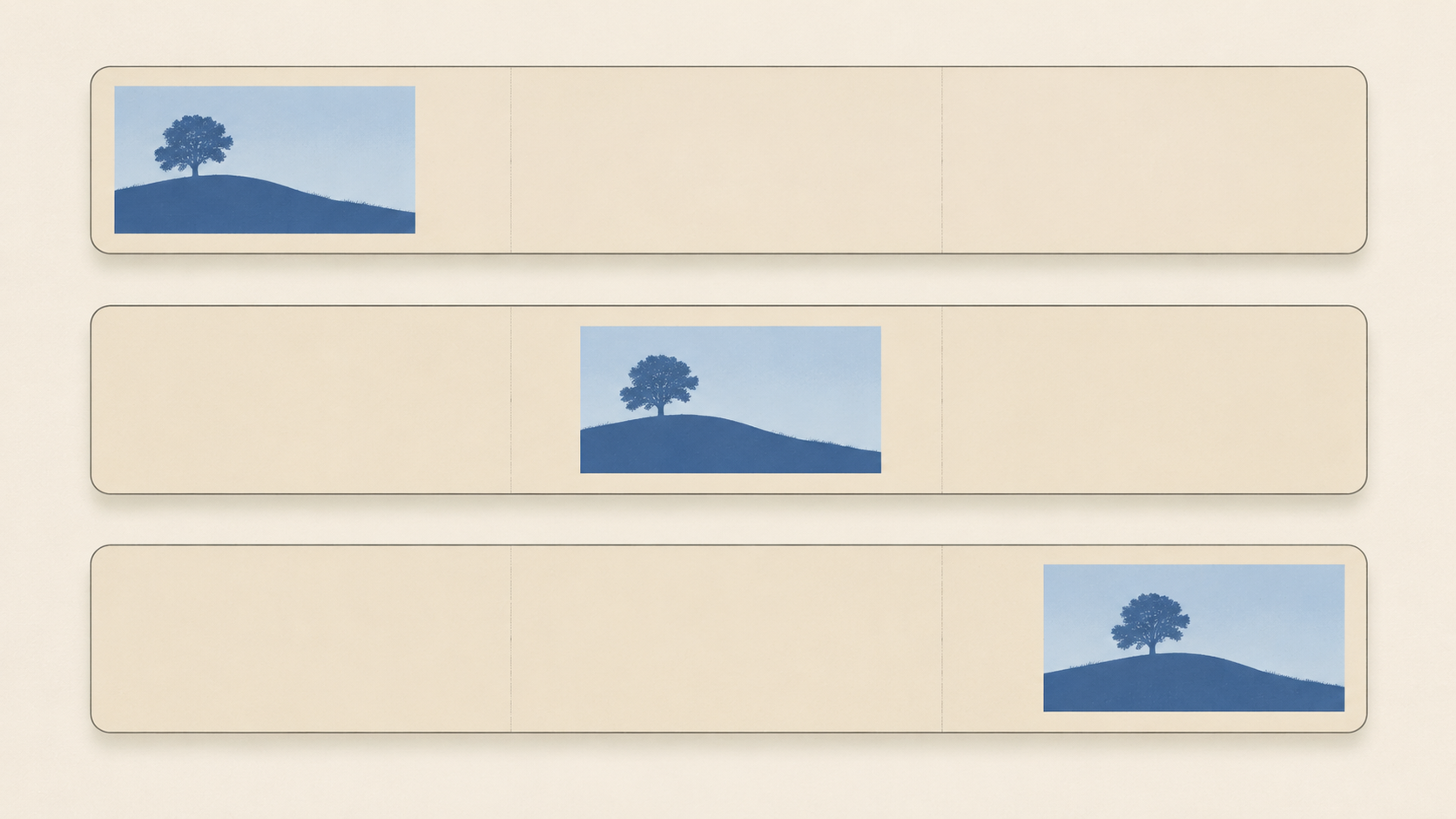
The most underused control in outpainting is position. Most people centre the original and accept whatever space appears on both sides, which is usually the wrong distribution.
Put the added area where continuation is easy. Sky above a skyline, floor below a table, wall beside a portrait. Put it where continuation is hard and you are asking the model to invent a room, a crowd, or a horizon from nothing, which is where strange objects appear.
Leave headroom rather than footroom for people: a face near the original's top edge stays near the expanded file's top edge, and later cropping feels tighter.
If the layout needs room for a headline, reserve it on purpose: a plain wall or a soft gradient extending sideways is far easier to generate, and more useful, than a specific object. Move the subject onto a thirds line when the file will be reused, so the composition survives a later crop.
The KOOX expander runs exactly this sequence: upload, choose a ratio, move and resize the original inside the larger canvas, add instructions if you want them, then generate. Moving the photo is free; regenerating because the composition was wrong is not.
Step 3: Describe what fills the new space
An instruction like "extend to the right" tells a model nothing it did not already know. What it needs is material, light, and geometry: the things that let it continue a scene instead of decorating a gap. The same advice runs through practitioner guides to image extension, which put prompt control near the top of what separates a usable result from a visible join.
Three patterns cover most jobs. For a surface, name the material and the light: "continue the pale oak floorboards, same soft window light from the left, matching contact shadow under the table." For a plain extension, keep it boring: "same painted wall in warm off-white, gentle falloff away from the window, nothing added." For an exterior, anchor the horizon: "overcast sky continuing the existing gradient, horizon line at the same height, no new objects."
Three habits make those prompts work. Name the light source and its direction, because a shadow pointing the wrong way is the first thing a viewer notices. State the horizon or camera height when the scene has one, which keeps perspective from flattening. And say what should not appear, since generative models like to fill empty space: no text, no logos, no extra people.
Keep the instructions to a sentence or two. A long prompt drifts into describing a new photograph rather than a continuation, and the model starts adding the objects you were trying to avoid. For a repeatable way to write and reuse these lines, see the prompting workflow for image edits.
Step 4: Generate and inspect the seam at full size
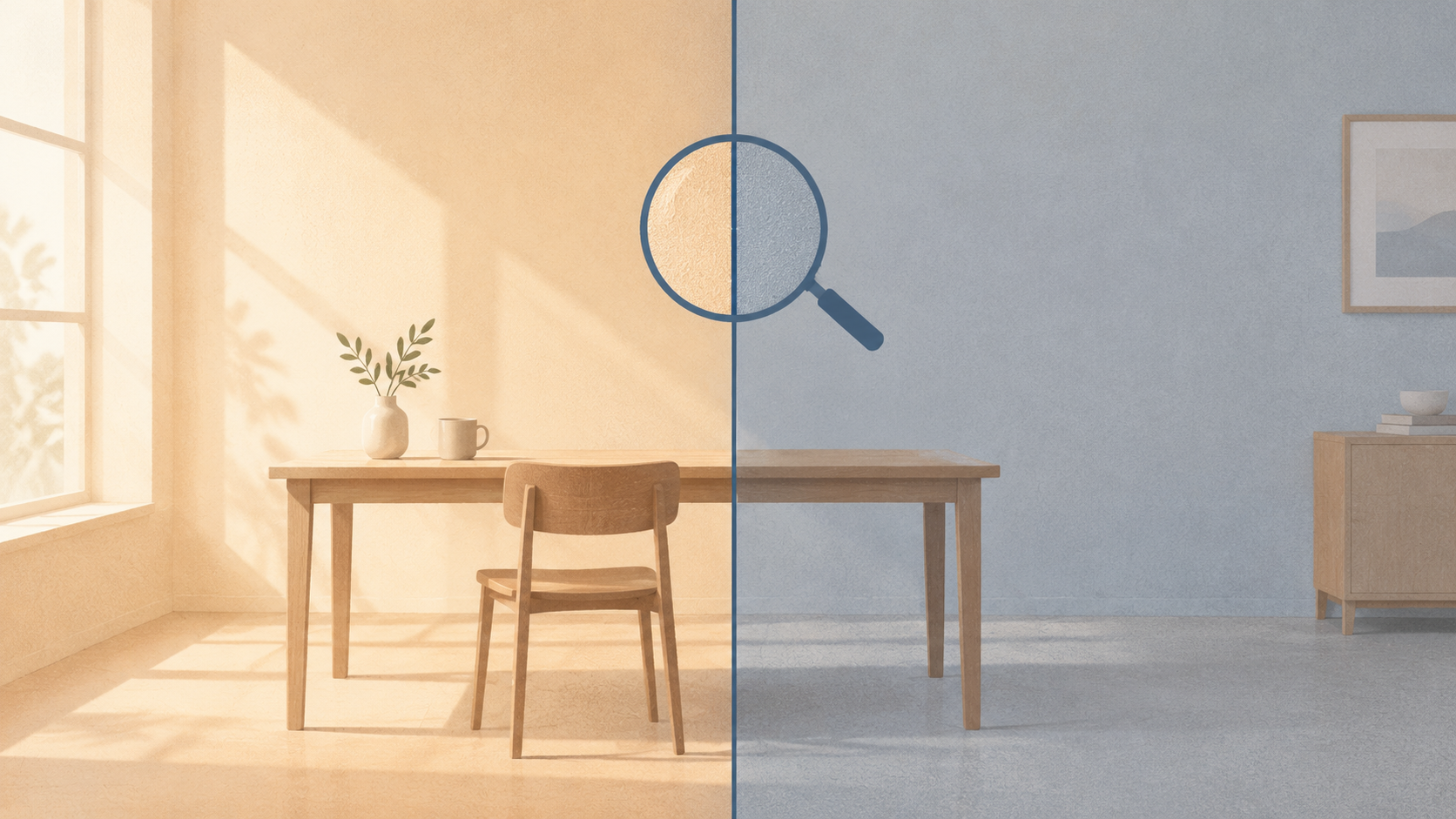
Judge the result on the boundary between original and generated pixels, at full size. A thumbnail hides precisely the failures that matter, which is why the check belongs at 100 percent.
Look for a tonal shift at the join, a change in sharpness or grain, and repeated or mirrored pixels, which signal that something resized the image instead of extending it. Check scale: floorboards that change width, windows too small for the wall. Watch for invented focal objects that pull the eye off the subject, and for letterforms: any text a model attempts will be garbled.
Then compare the result against the original rather than your memory of it. Place them side by side and ask whether the new area describes the same place at the same time of day. A 4K output gives a platform room to resize, but resolution never fixes a seam; it only makes a good seam sharper.
Step 5: Iterate one edge at a time, then export
Extending all four edges in one pass gives the model too many boundaries to match at once. Sequential extensions produce cleaner joins because each step inherits more original context: widen first, review, then add height if the destination needs it.
If a seam still fails after two attempts, change the placement before you change the prompt. Shifting the original a few dozen pixels alters which pixels the model treats as context, and that often does more than another paragraph of description.
Upscale after expanding, never before: an upscale inflates the file the expander has to read and can amplify artefacts along the new boundary.
Export per destination, not per source. A 16:9 and a 9:16 expansion of the same photograph are two files with two compositions, and treating one as the master usually means the other ends up cropped. Name each file by destination and ratio, keep the untouched original beside them, and check the finished dimensions against the pixel floor you wrote down at the start.
When expansion is the wrong answer
Some ratio problems are not expansion problems. If the subject is cut off at the edge, you need reconstruction, a wider original, or a reshoot. If you need more resolution rather than more scene, an upscaler is the right tool. If the image is a screenshot or a slide dense with type, generated areas produce garbled letterforms, and recomposing in a layout tool is faster. If the product must be exactly accurate, expanding the backdrop is safe while anything that redraws the product is not. And if two hundred catalogue images must match one template, a fixed crop will beat per-image prompting.
For the review habit that keeps a whole set looking like one set, the four-pass editing routine is a useful companion to this workflow.
A short checklist before you publish
- The ratio matches the destination's published range and pixel floor.
- The original pixels are untouched, with no stretch or distortion anywhere in the frame.
- The new area extends the scene rather than decorating it: same light, same horizon, same materials.
- The seam has been inspected at 100 percent, not in a thumbnail.
- No invented text, logos, faces, or brand marks crept into the generated space.
- The original file is archived, and each destination has its own export.
That is the whole workflow: ratio from the destination, source prepared, placement chosen, environment described, seam inspected, one edge at a time. None of it is exotic: most of it happens before the model runs. When you want to run the sequence on a real file, the image expander holds all of it on one screen.