How to Remove the Background From an Image and Check the Edges Before You Use It
A practical workflow for removing a background from an image: prepare the file, cut the whole subject once, test the cutout on three backgrounds, and fix edge defects by cause instead of regenerating.
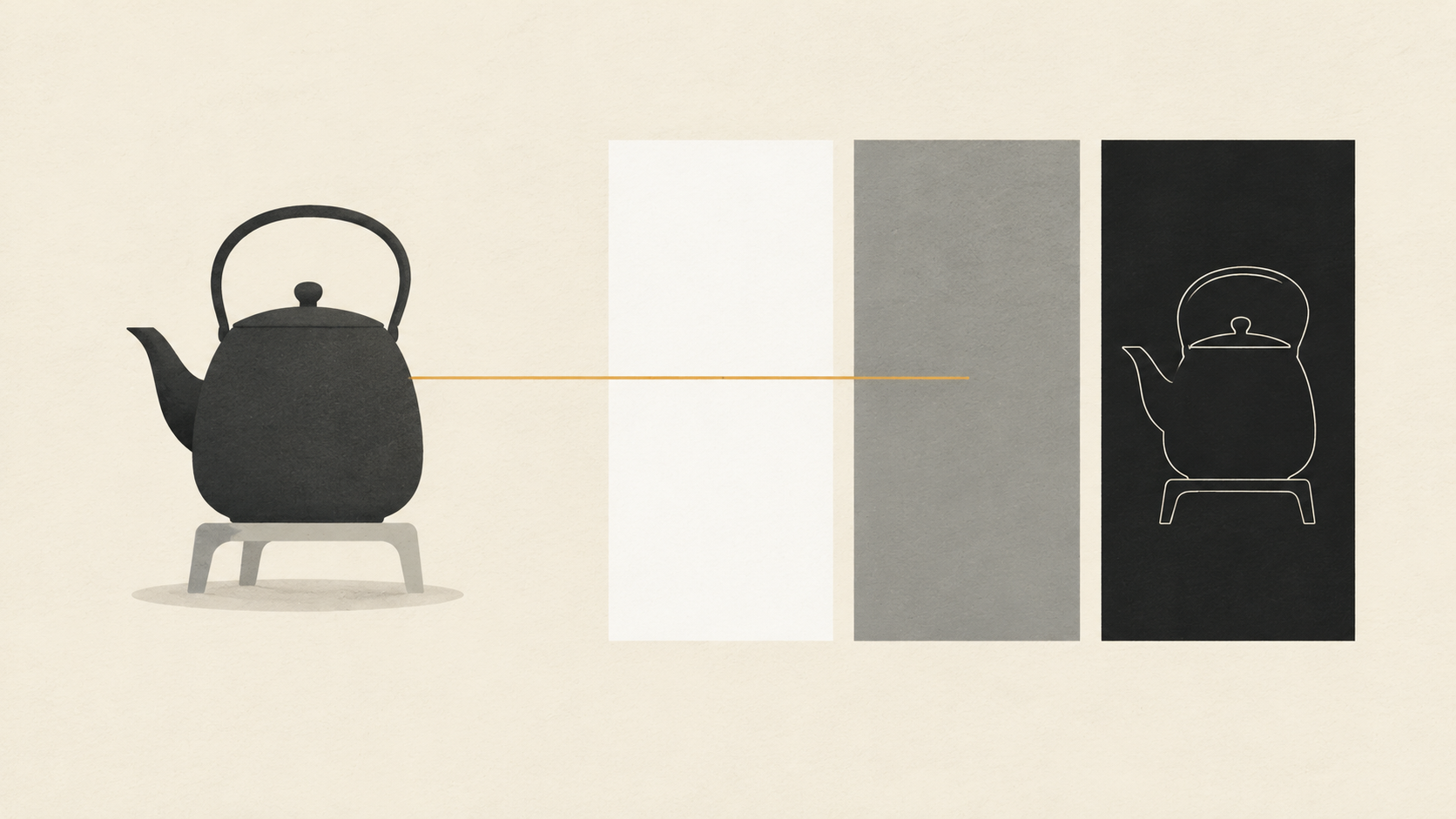
Removing a background is the easy half of the job. The cutout arrives in a few seconds, looks convincing on a white page, and then falls apart the moment it sits on a dark slide or a coloured product page: a pale rim along the shoulders, a chewed strap, a faint rectangle of the old room still clinging to the hair.
Those defects are cheap to catch early and expensive to find late, after the asset has gone to a marketplace, a deck, or a campaign. So this workflow is built around verification: prepare the input, cut the whole subject in one pass, test the result against backgrounds that expose its edges, and only then decide whether to iterate or to fix the file by hand.
Prepare the input before you open the tool
Most weak cutouts are decided before removal starts. A background remover is making a prediction about which pixels belong to the subject, and that prediction gets harder as the evidence gets thinner. Sharp focus, decent resolution and a visible difference between subject and backdrop are the three things that make the prediction easy. A screenshot of a photo, a thumbnail scaled up, or a file saved at low JPEG quality are the three things that make it hard.
Work from the largest original you have. If a compressed copy is all that exists, look at the edge of your subject at full zoom before uploading. Blocky colour patches and a soft transition zone around the outline are compression artefacts, and the model will read that transition as part of the boundary. They become a fringe later, and no amount of prompting takes them back out.
Crop when the subject is small in the frame, and keep the whole subject inside it. A person standing in a wide landscape gives the model very little of the detail it needs, and a subject touching the frame edge gives it no background to compare against.
Decide what the file is for at this point, because it changes the export. A reusable cutout needs an alpha channel, and that rules out JPEG entirely: JPEG has no alpha channel, which is why PNG is the standard fallback for any image that needs transparency. If the cutout will be flattened onto a white marketplace background and never reused, you can skip the transparency work and export the composite directly.
Run one pass over the entire subject
Cut the whole subject in one operation, not piece by piece. Separate passes for hair, then a hand, then a strap produce a composite of three different predictions, and the seams between them show up as changes in edge softness.
Before you judge the result, remember what kind of object you are looking at. The tool has produced an estimate of foreground and background from learned visual patterns; it is a prediction, not a measurement. That is why the same image can come back clean on one run and slightly different on the next, and why extremely fine structures such as flyaway hair, jewellery chains or plant stems are the first things to go missing.
Keep the first output even if you dislike it. It is the reference you will compare later passes against, and it is usually the only artefact that records exactly what the tool saw.
Test the cutout on three backgrounds
A cutout checked only on a white page is not checked. White hides pale halos, and a transparency checkerboard hides almost everything, because the eye reads the pattern instead of the boundary.
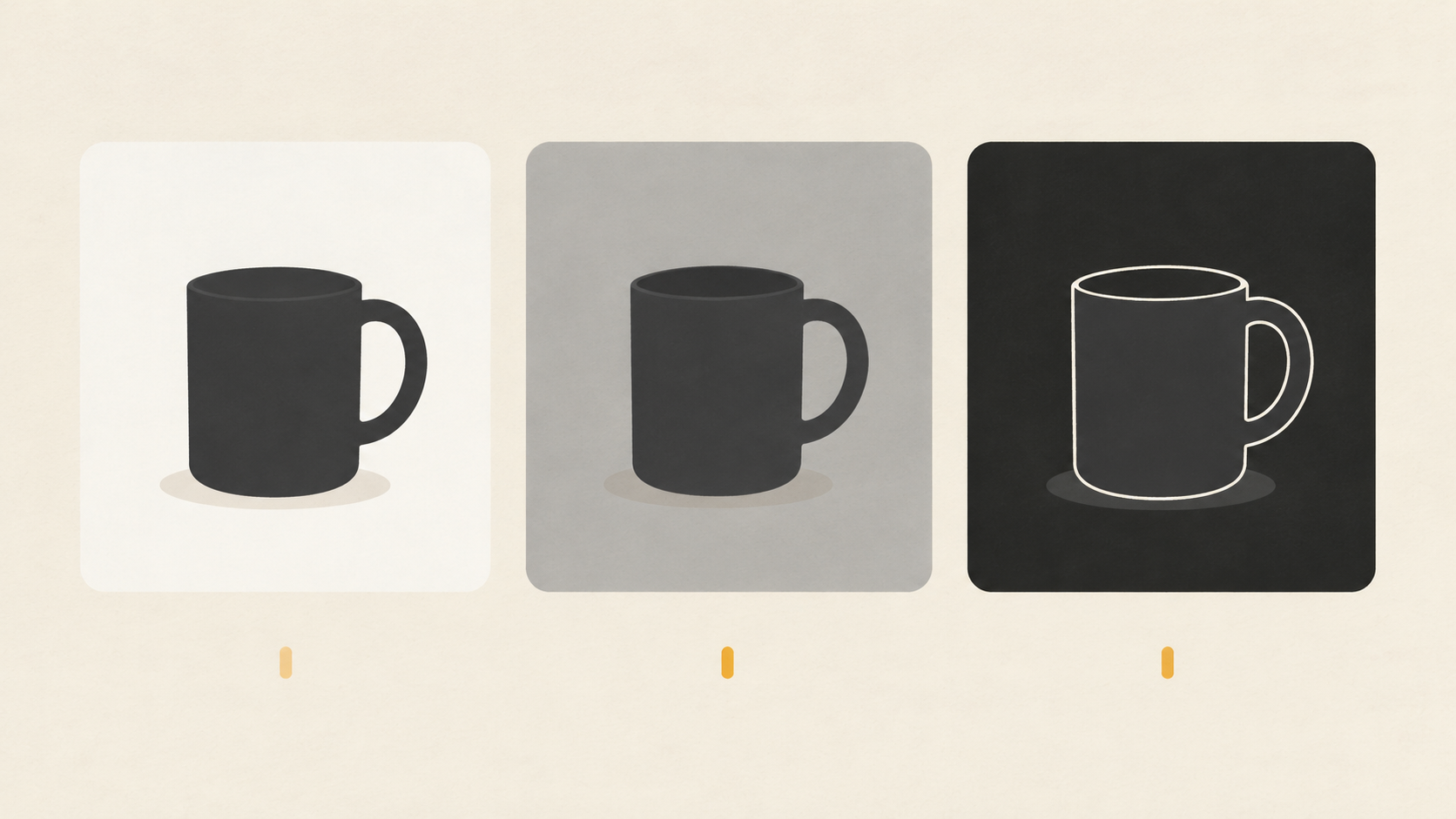
Put the same cutout on three backgrounds at once: white, a mid grey, and something close to black. Each one exposes a different defect. Dark backgrounds reveal the light fringe that came from a bright original background, the pale rim most cutouts carry. White reveals the opposite, a dark contamination ring from a dark studio backdrop or a leftover shadow. Mid grey is the honest middle: it shows either kind of contamination without exaggerating it, and it is the best surface for judging whether the edge looks natural at normal viewing size.
The test takes a minute, and it catches the defect that matters most in practice, the cutout that looks perfect in the editor and shows a glowing outline in the layout.
Read the edge at full size, in four zones
Zoom to 100 percent and inspect the boundary in four places, because they fail for different reasons.
Hair and fur, where the edge is not a line at all but a gradient of semi-transparent pixels. Thin structures such as straps, stems, wires and frames, which occupy only a few pixels and can be classified as background noise. Interior holes, the gap inside a mug handle, the space between spokes, the counters in lettering, where background often survives as a patch because the outer silhouette is easier than the negative space inside it. And the contact area, where the subject met the floor: there the question is not only the edge but the shadow, which is sometimes part of the presentation and sometimes not.
Name what you see in one of these terms: a band of leftover backdrop along the boundary; a chewed or stepped edge where subject pixels were removed; a pale or dark rim; a hard binary edge on something that should be soft, like hair or sheer fabric. The name matters, because each one has a different fix and only one of them is fixed by running the tool again.
Fix the cause, not the symptom
A halo is usually not a mask error. It is the original background bleeding into the edge pixels, combined with anti-aliasing, soft focus and compression at the boundary. Those pixels have already been averaged with the backdrop, and the average is now part of your subject. Re-running removal cannot recover colour that the file no longer contains, so a second pass will either keep the rim or eat further into the subject.
That splits the fixes into three buckets.
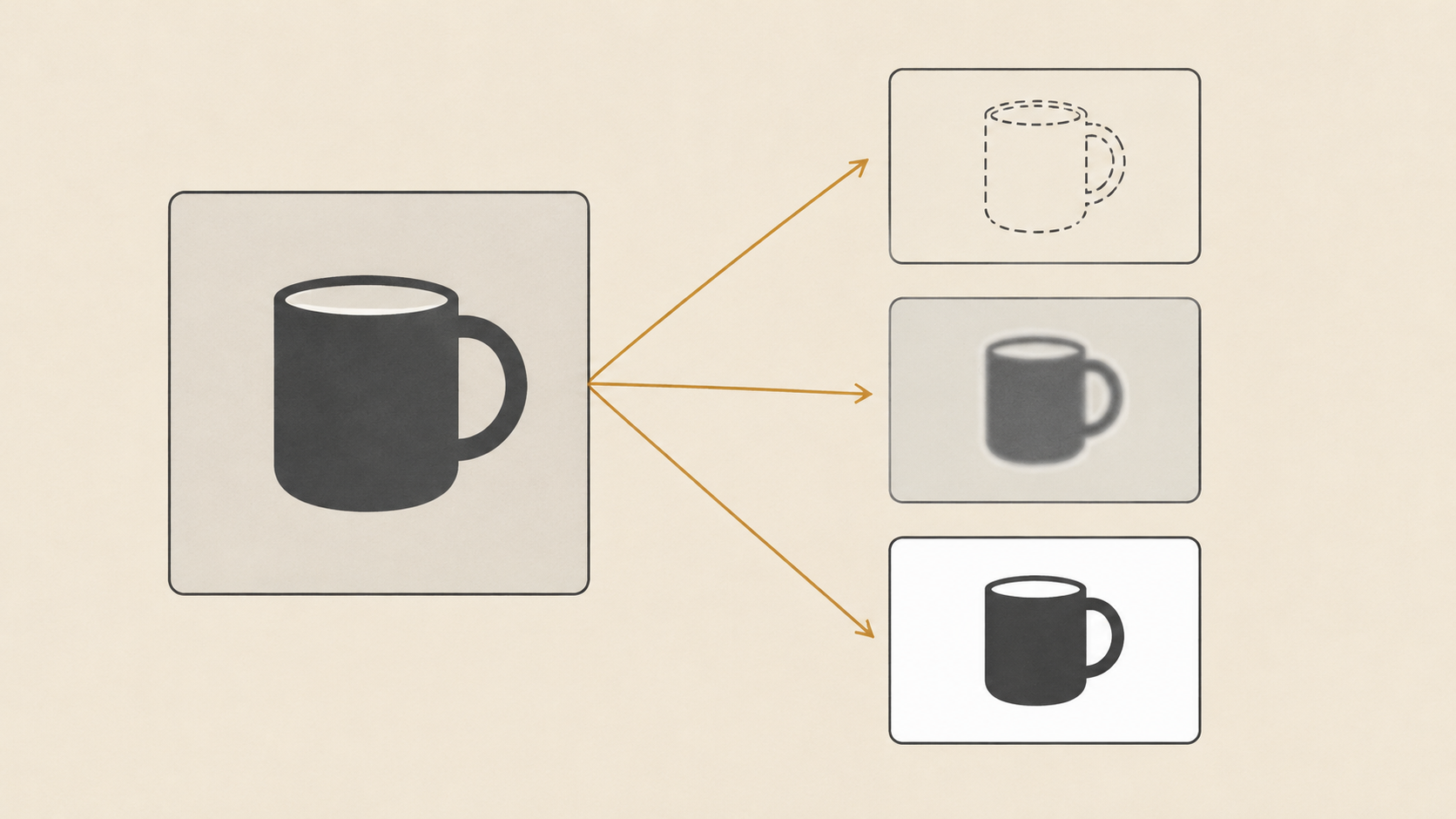
If the source is ambiguous, with similar colours, heavy compression, blur or a busy background, change the source. A sharper file with more separation is faster than five iterations, and it is the only fix that improves every zone at once.
If the source is good and the mask is wrong in one named zone, a missing strap, a hole left filled, a piece of shoulder removed, one targeted second pass is reasonable, with the instruction naming that zone and asking for the rest of the frame to stay as it is. Then stop. Repeated passes on a cutout tend to trade one defect for another, the same drift that makes chained image edits unreliable.
If the mask is right and the edge is contaminated, the work belongs in a compositing tool rather than a generator. A one or two pixel matte contraction, or a defringe pass, removes the rim without touching the subject. That is also the honest limit of an automatic cutout, and knowing where the limit sits saves a lot of pointless regeneration.
Set a two-pass budget
Give any single image two removal passes. The first covers the whole subject. The second is allowed only when you can name the zone that failed and the fix that should address it.
After two passes the options are: fix the matte by hand, change the source photo, or accept the cutout for the size it will actually be used at. The last one is legitimate more often than it feels. A retouched edge at 100 percent is invisible in a 400 pixel wide card, and the reverse is true as well: an edge that looks fine on a phone can fail on a full-width hero.
Export for the job the cutout will do
Export the master as a PNG with an alpha channel and keep it. PNG stores the image losslessly and supports an optional alpha channel, so the file you archive is the file you cut, and every later export is a copy of it rather than a recompression. A JPEG export throws the alpha channel away and reintroduces compression artefacts exactly at the boundary you just spent time checking.
Do not resize the cutout after removal if you can avoid it. Downscaling re-averages the edge pixels, and a rim that was half a pixel wide turns into a visible one. Export at the size the destination needs, from the full-resolution master.
When the destination flattens the image anyway, do the flattening yourself. Place the cutout on the final background colour before export and judge the edge against that colour rather than a neutral grey. If a marketplace requires a white background, check the rim on white, because that is the surface the customer will see it against.
Put the cutout into a new scene
A clean cutout on a new background can still fail for reasons that have nothing to do with the mask. Scale, perspective and light direction do most of the work, and so does the contact shadow: an object with no shadow reads as pasted, while an object carrying the original room's shadow reads as wrong.
Build the new background under the cutout rather than over it, keep the shadow on its own layer so you can weaken it without touching the subject, and match the light direction of the original photo. If the original light came from the left, the shadows in the new scene should fall to the right. A small mismatch there is more noticeable than a slightly soft edge.
A routine you can repeat
One: pick the largest sharp original and crop close to the subject. Two: remove the background in a single pass over the whole subject. Three: put the result on white, mid grey and near black before deciding anything. Four: inspect hair, thin structures, interior holes and the contact area at 100 percent, and name the defect. Five: if the matte is wrong in one place, allow one targeted pass; if the edge is contaminated, defringe it in a compositing tool; if the source is weak, replace the source. Six: export a PNG master, then a copy at the size and background the destination needs.
That order matters more than the tool used for each step. Removal is the part everyone watches; the background test and the full-size edge read are the parts that decide whether the file is usable. If you want to run the first step now, the AI background remover makes the cut in one pass, and this guide to background removal prompt patterns covers how to phrase the second pass when one zone needs it.