Animate a Photo With AI: Six Jobs a Still Image Can Do
Six concrete jobs for photo-to-video AI, from product pages to family archives, with the motion instruction and the finishing check each one needs.
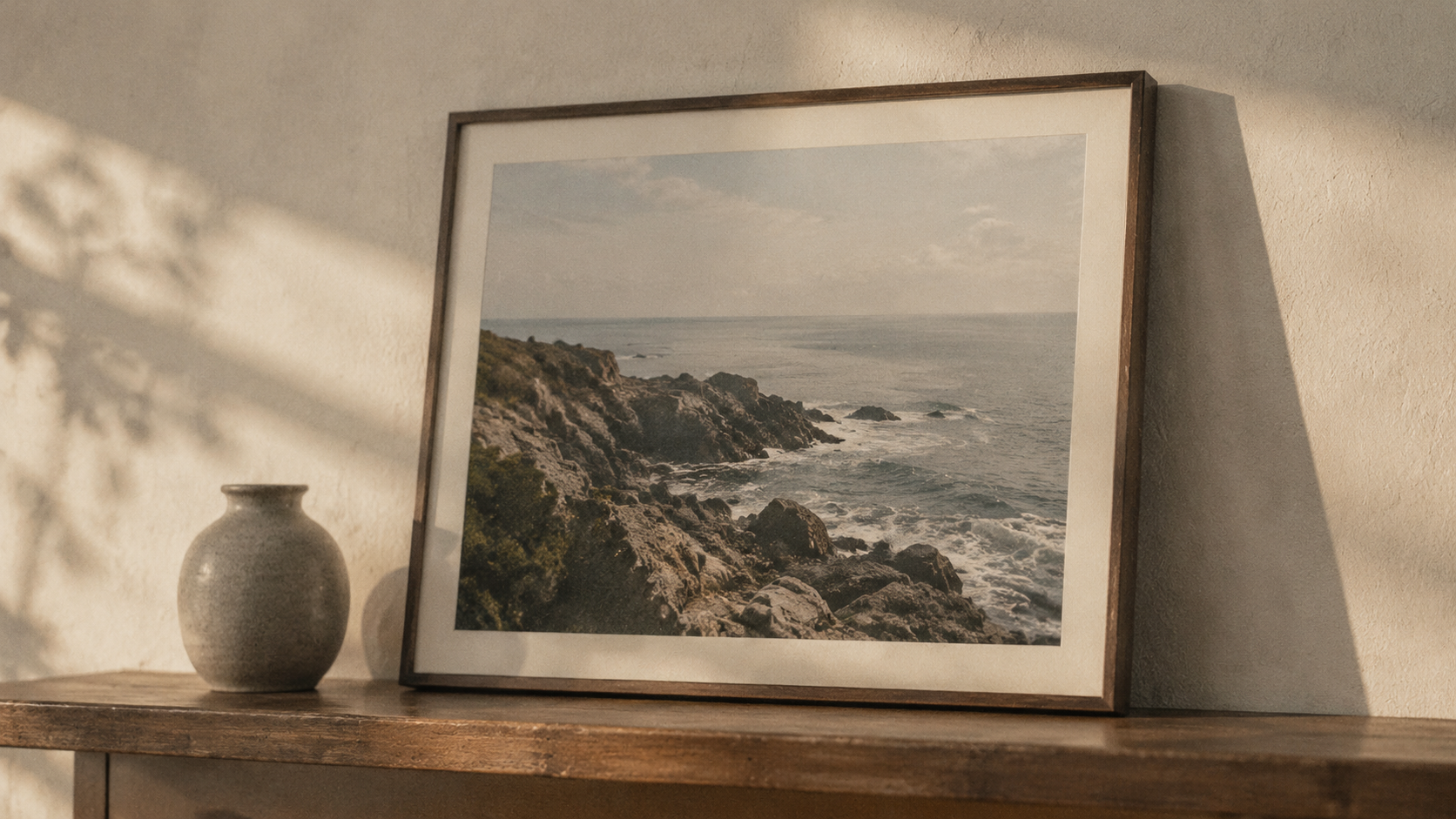
A still photograph is not a failed video. It is a frame you already control: the light is settled, the subject is where you put it, and nobody has to be booked for a reshoot. Photo-to-video AI takes that frame and generates motion around it, which makes the technique useful in one specific situation, when the image exists and the shoot does not.
That is a narrower promise than most tool pages make, so this guide is organised by job instead of by feature. Six jobs follow, each with the photo it needs, the motion instruction that does the work, and the single check that tells you whether the clip is finished or merely rendered.
Two constraints shape all six. In image-to-video systems the source photo normally becomes the first frame of the clip, and the clips themselves are short. Google's video-generation documentation describes 8-second output at 720p, 1080p, or 4K, in landscape 16:9 or portrait 9:16, with optional first-and-last-frame control and up to three reference images. Eight seconds is a gesture, not a story. Plan for a gesture.
The photo already contains the hard part
Image animation has been a research problem in its own right for years. The First Order Motion Model, published in 2020, defines image animation as generating a video sequence so that an object in a source image is animated according to the motion of a driving video, and names movie production, photography, and e-commerce among its applications. Read that definition closely, because its structure still holds: appearance comes from the still, and motion comes from somewhere else.
In older pipelines that somewhere else was a driving video or an animator's keyframes. In a photo-to-video tool it is your prompt. That shift matters more than any slider, because you are not adding life in general. You are specifying motion in words and asking the model to reconcile those words with the pixels it was given.
MotionCanvas, a 2025 image-to-video system, describes shot design as jointly planning camera movement and scene-space object motion. Both, not one or the other. A prompt that names only the camera gives you a travelling camera and a frozen subject. A prompt that names only the subject leaves the frame static. The clips that read well usually name both, and also name what has to stay still.
What the model keeps and what it invents
Diffusers' video generation guide states the underlying problem plainly: video generation extends image generation, which can be considered a single-frame video, and the hard part is keeping text, space, and time consistent from frame to frame. Frame count is the main dial, since more frames mean smoother motion and a longer clip at a given rate.
Two practical consequences follow. First, anything the model cannot see in the photo will be invented if your motion requires it. A front-facing shot of a bottle that the prompt spins will produce a back label that never existed. Second, anything the model can see tends to survive: silhouettes, colour, composition and material read hold together across a short clip in a way a rushed reshoot often does not.
This is why the choice of source image does most of the work. A clear, well-lit frame with an obvious subject gives the model something to preserve. A busy frame with three competing focal points gives it somewhere to drift.
Use case: a product page that needs one honest second
The most common job is a catalogue still that has to move on a landing page or a marketplace listing. The input is a clean product photograph, ideally on a plain surface with one clear light direction and no props crowding the edges. The instruction is small on purpose: a slight camera push, a light shift across the surface, or a gentle rack of focus. Nothing that requires the product to change shape.
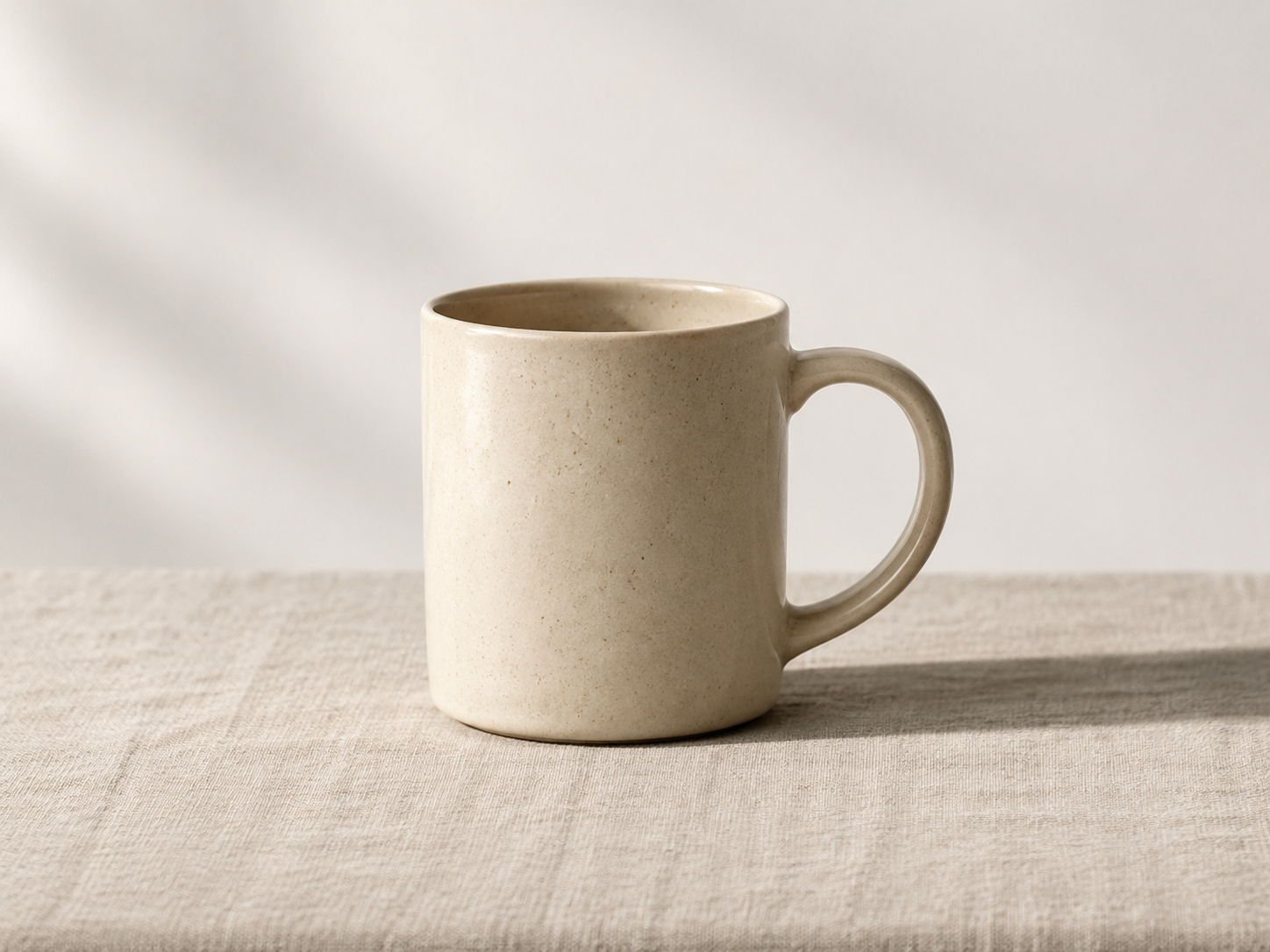
The check: pause on the last frame and compare it with the first. If the logo moved, the proportions drifted, or the material turned glossy, the motion was too ambitious for the frame you supplied.
Use case: paid social variants without a reshoot
Ad testing rewards volume, and volume is expensive when every variation needs a studio. A single strong product or lifestyle photograph can supply several clips that differ only in motion: a slow push for a considered brand, a faster push with a tilt for a feed placement, and a still-ish version with a drifting light for a quiet audience. Portrait crops matter here, which is why the 9:16 output option exists in the first place.
The instruction should describe the change between variants, not the whole scene each time. "Same framing, faster push, camera tilts up slightly" is easier to evaluate against the previous render than a rewritten paragraph.
Use case: a creator intro that is not a talking head
Channels, newsletters and course pages all need a short opening beat, and not every creator wants to appear on camera. A portrait or a well-made still of the workspace can carry a two-second title beat: a slow zoom toward the face, a soft parallax drift across a desk, a curtain of light crossing the frame. Keep the subject's motion minimal. A mouth that moves without sound reads as broken, while a head turn or a blink reads as alive.
Use case: property and hospitality previews
A wide interior photograph is a natural first frame, because the camera move you want already exists in the composition: walk forward through the doorway, drift left toward the window, rise slightly toward the ceiling line. This is the use case where the first-frame constraint is an advantage rather than a limitation, since the photograph was framed to be looked at.
Ask for one move per clip. A clip that pushes in and pans and tilts reads as a drone shot that lost control; a single steady move reads as a camera on a gimbal, which is what the audience expects from a property walk-through.
Use case: bringing old family photographs forward
Archival images are the most forgiving input and the most emotional output. Scanned prints carry grain, softness and faded colour that current models reproduce convincingly, and a small amount of motion, a slow push toward a face, a drift across a group, turns a slide into a moment. The reference-image option is useful here: supply the scanned print as the first frame and a second, cleaner copy as a reference so the model has both the original texture and the detail it needs.
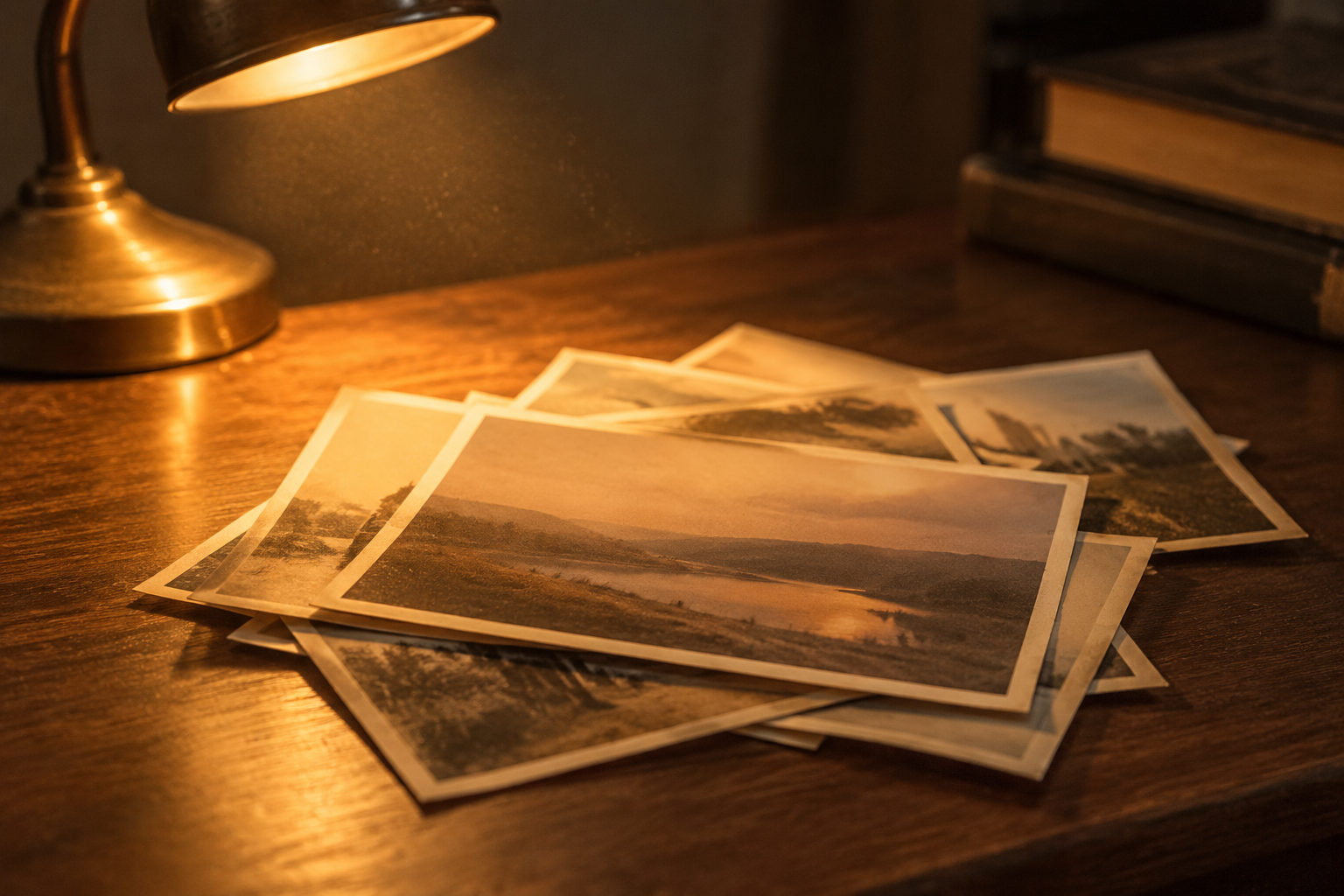
Be conservative. On a photograph of people, a push-in preserves the faces; a prompt that asks the subjects to turn toward the camera asks the model to invent features it cannot see, and invented faces in family material are the one result viewers never forgive.
Use case: editorial illustration for text-heavy pages
Long articles, documentation and reports often need a visual that is not a stock photograph of a laptop. A moving still works as a header loop: sixteen by nine, one slow movement, no cuts. The motion is almost decorative, and that is the point, because a reader who notices the loop has stopped reading. The same clip can be reused across a series if the composition is generic enough to survive a second headline.
The pre-flight check before you render
Before spending a render, answer five questions on paper.
- Is there one subject, clearly lit, that the model can preserve?
- Does the prompt name both the camera behaviour and the subject behaviour?
- Does it say what must not move?
- Is the duration inside what the model actually produces, rather than what the story wants?
- Is the aspect ratio the one the destination uses, not the one the source photo happens to have?
After the render, the check is the same for every use case: compare the last frame with the first, then compare the first frame with the original file. If the opening frame already differs from the source, the model re-interpreted the photo rather than animating it, and no amount of prompt tuning downstream will fix that.
Where a moving still stops helping
Photo-to-video is a poor fit for anything that needs dialogue, legible generated text, or a specific sequence of actions across more than one shot. A still cannot show a product being opened, used and put away in eight seconds without the model inventing most of it. It also cannot rescue a bad source image: motion amplifies whatever the frame gets wrong, especially a blown highlight or a soft focus on the subject.
Treat the output as a shot, not a scene. Teams that get value from this workflow stitch three or four short clips with hard cuts or fades, and each clip is generated from its own still with its own single instruction.
Choose the job, then write the prompt
The order matters. Decide which of the six jobs the clip is doing, choose the still that job needs, then write a sentence that names the camera, the subject and the constraint. On KOOX AI's photo-to-video tool the workflow is the same three steps: upload a clear photo, describe the motion, generate and refine. If you want more structure for the middle step, the five-line prompt skeleton is a good starting shape, and the six motion patterns cover the moves that most often hold up on a still.
One last piece of advice that saves renders: write the check before the prompt. If you know you will compare the last frame with the first and the first with the original, you will ask for less motion, and the clip will land closer to the photograph you started with.